
Home / Tools / Elevated Page Check
A free Chrome extension that checks the web page you are on the way a stranger and a search engine see it. Click it on any page and get plain-English results: what to fix, what to look at, and what is already good.
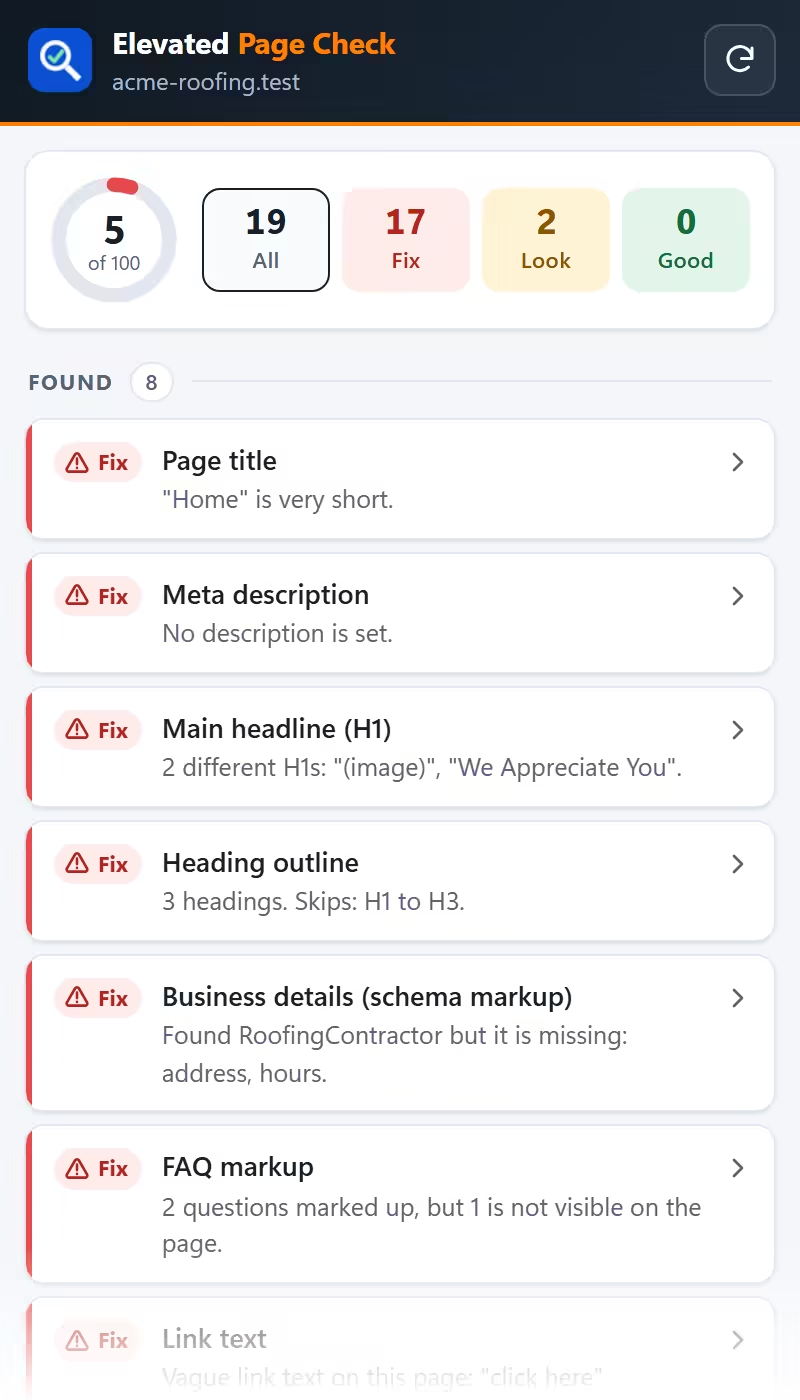
It works in Chrome and in other Chromium browsers like Edge and Brave, on a computer. It is free, has no account, and never sends what it reads anywhere.
It reads one page at a time. Check your home page, your most important service page and your contact page, because each one can have different problems.
The links in the extension land on these sections.
The title is the blue link people click in Google. When it is missing, too short or too long, Google writes its own or cuts off the part that matters, usually the town.
Fix it: say the service and the town, near the front, in 50 to 60 characters. “Gutter Repair in Springfield, IL | Acme Exteriors” beats “Home”. In WordPress with Yoast or Rank Math, it is the SEO title box under the page editor. Each page gets its own title.
The line or two under the blue link. It does not move rankings much, but it decides whether someone clicks you or the next result.
Fix it: one sentence on what this page offers, one on why to call (how fast you answer, how long you have been doing it, free estimates). Keep it under about 155 characters. It sits in the same SEO box as the title.
The H1 is the headline a search engine reads as “this page is about”. The extension flags a page with no H1, an H1 that is a picture, several visible H1s, a hidden H1 with different words, or an H1 that is a greeting like “Welcome” or “Family Owned Since 1985”.
Fix it: one H1 per page, in real text, naming the service and the town. In most page builders you pick the heading tag in the headline’s settings: set the main one to H1 and the rest to H2. If your headline is baked into a banner image, retype it as text on top of the image.
Sometimes the biggest words on the screen are not the ones marked H1. Visitors read the big words; search engines read the H1. This is a Look, not a Fix: it only matters if the two say different things.
Fix it: decide which headline you want Google to read and make sure that one is the H1.
Subheadings split a page into topics. Jumping from an H1 straight to an H4, or using heading tags just to make text big, makes the outline hard to follow for search engines and screen readers.
Fix it: H2 for each main topic, H3 for points inside it. If you want big text that is not a heading, style a paragraph instead.
Schema is a hidden, machine-readable card in the page code: “this is a business, here is its name, address, phone and hours.” Search engines and AI assistants use it to be sure who you are. The extension looks for LocalBusiness (or a type like Plumber or RoofingContractor) and lists what is missing.
Fix it: ask whoever maintains the site to add LocalBusiness schema with your name, address, phone and hours, copied from your Google listing. SEO plugins like Yoast Local or Rank Math can do it. Then paste the page address into Google’s Rich Results Test to confirm it reads.
A block of schema with a typo fails silently. The page looks fine, but search engines skip the whole block.
Fix it: run the page through the Rich Results Test or the Schema Markup Validator and fix the line it points to. A common cause is a quote mark or a link pasted inside an answer.
FAQ markup should match questions a visitor can actually read on the page. Marked-up questions that are hidden, or not on the page at all, can be ignored. No FAQ at all is not an error, so it shows as Look.
Fix it: on service pages, add two to four questions real customers ask, each answered in its first sentence. Show every question you mark up.
The extension shows the first paragraph under your headline, because only you can judge it. Does it say what you do, where, one concrete fact, and how to reach you? That paragraph is what visitors read first and what AI answers tend to lift.
Fix it: read it out loud. If it sounds like a brochure (“We pride ourselves on quality”), rewrite it the way you would answer a customer standing in the driveway.
The words of a link tell Google what the linked page is about. “Click here” and “Learn more” tell it nothing. A page with only one or two links to the rest of your site is a dead end for visitors and search engines.
Fix it: write links that say where they go (“gutter repair in Springfield”), and link each service page to related services, a few posts and the contact page.
These checks get sharper once you save your business card in the extension.
Your phone number should be the same on the site, in the schema and on your Google listing. A different number, or one a digit off, makes Google and customers unsure which one is real.
Fix it: put your main number in the header, the footer and the schema. Extra numbers are fine when you meant them (a second location, a fax). Tracking numbers belong in ads, not in your footer or schema.
One business, one name, everywhere. If the schema says “Acme Roofing LLC” and your listing says “Acme Exteriors”, that reads as two businesses.
Fix it: make the schema name match your Google listing exactly.
The number in the code and the number the call button dials should be the same. When they differ, search engines see one and customers dial another.
Fix it: pick the main number and use it in both places.
NAP is your business Name, Address and Phone. Google trusts a business more when every listing on the web (Yelp, Facebook, BBB, Angi, your chamber, data sites) says the same thing as your Google profile. Save your full card in the extension, open one of your listings, and click NAP check at the top. On most directory sites it opens there by itself. Copy my NAP puts your exact details on the clipboard for pasting into a listing’s edit form.
Not sure where your listings are? Search your phone number by itself in Google and open every result that is about you.
A listing under an old name, a nickname or a different spelling reads as a different business, so it adds nothing to yours. The check allows “and” vs “&” and a missing LLC or Inc as a Look, because those are small, but exact is best.
Fix it: claim or log in to the listing and change the name to match your Google profile word for word. If the site will not let you, use its “suggest an edit” or support form.
An old number, a call-tracking number or a typo on a listing sends calls nowhere and tells Google your details do not agree. Directory pages often show other businesses’ numbers too, so the check only marks Fix when your own number is missing.
Fix it: set the listing’s main phone to the number on your Google profile. If you use tracking numbers, keep them in ads, not on listings.
An old or wrong address splits your business in two in Google’s eyes and can send a customer to the wrong door. “St” vs “Street” and “N” vs “North” count as the same. A missing suite is a Look.
Fix it: make the street match your Google profile, suite included. If you serve customers at their place and hide your address on Google, leave the street out of your card and hide it on the listing too.
The town is how Google ties a listing to searches near you. A neighboring town or an old ZIP is a common leftover from a move.
Fix it: set the town, state and ZIP to match your Google profile.
A listing that links to your site sends visitors to you and is one more sign that the listing and the site belong to the same business. Text that shows your domain but is not a link counts as a Look.
Fix it: add your full website address (https://…) in the listing’s website field.
A button that shows one number and dials another usually comes from a copied template or an old tracking number. The customer never knows; they just reach the wrong place.
Fix it: edit the link so it dials the number shown. A phone link looks like tel:2175550100 in the link box.
On a phone, a number shown as plain text (or inside a picture) has to be memorized and typed. Plenty of people tap the next business instead.
Fix it: make every phone number a link: in WordPress, select the number, click the link button and type tel: followed by the digits, like tel:2175550100. Put one in the header and the footer.
The extension counts your forms and their fields, and flags a form longer than seven fields, which loses people on a phone. It cannot tell whether a form actually reaches a person, so forms always show at least a Look.
Fix it: send yourself a test inquiry with a name you will recognize. Time how long it takes for a person to see it. If it never arrives, that is the most expensive problem on the site.
Search engines read alt text and file names to know what a photo shows. IMG_4471.jpg and an empty alt say nothing, and stock-looking pages earn less trust from people too.
Fix it: use your own job photos, name files plainly before uploading (roof-replacement-springfield.jpg) and describe each photo in its alt text, the way you would to someone on the phone.
A stranger decides in a few seconds. The first screen, before any scrolling, should show who you are and what you do (a headline), a phone number they can tap, and a next step like Call, Get a Quote or Book.
Fix it: move those three up. Check on your own phone, not just on a desktop, since the first screen is much smaller there.
A noindex setting tells search engines to leave the page out of their results. It is often left on by accident after a site launch, or ticked in WordPress under Settings, Reading.
Fix it: if this page should be found, remove noindex in the page’s SEO settings, and check that “Discourage search engines” is unticked under Settings, Reading.
The canonical tag names the “real” address of a page. If it points somewhere else, Google may index that address instead. On a copied template it can even point at a different business.
Fix it: set the canonical to this page’s own address, unless you really want the other address in Google. It lives in the advanced tab of most SEO plugins.
Without a viewport tag, phones show a tiny desktop page that visitors have to pinch and zoom.
Fix it: ask whoever maintains the site to add the standard viewport tag to the page head. Every modern theme has it, so a missing one usually means a very old site.
Want someone to look at all of it for you? Ask Elevated Ideas for a free review of your website and Google listing.
Page Check reads the page only when you click its icon, works entirely inside your browser and sends nothing to Elevated Ideas or anyone else. Your saved business card stays in your browser. It asks Chrome for three permissions: activeTab (read the page you clicked on), scripting (run the check on that page) and storage (remember your card). Full details: privacy policy.